Field Notes on the CivilGrid Web Platform
Last updated: July 20, 2026
Viewing your Field Notes on the web
Field Notes captured in the CivilGrid Mobile App — or added through a connected Trimble device — sync straight to the CivilGrid platform. On map.civilgrid.com you can see every note on the project map, review its text, photos, and location, edit or delete notes, and export the whole set for sharing. This keeps project managers, engineers, and surveyors aligned on actual field conditions, even when they’re nowhere near the site.
Watch the full walkthrough
What you can do with Field Notes on the web
Review all field notes collected from a mobile device or added via Trimble on a single project map.
Tell text notes from photo and media notes at a glance, and find each note’s exact location.
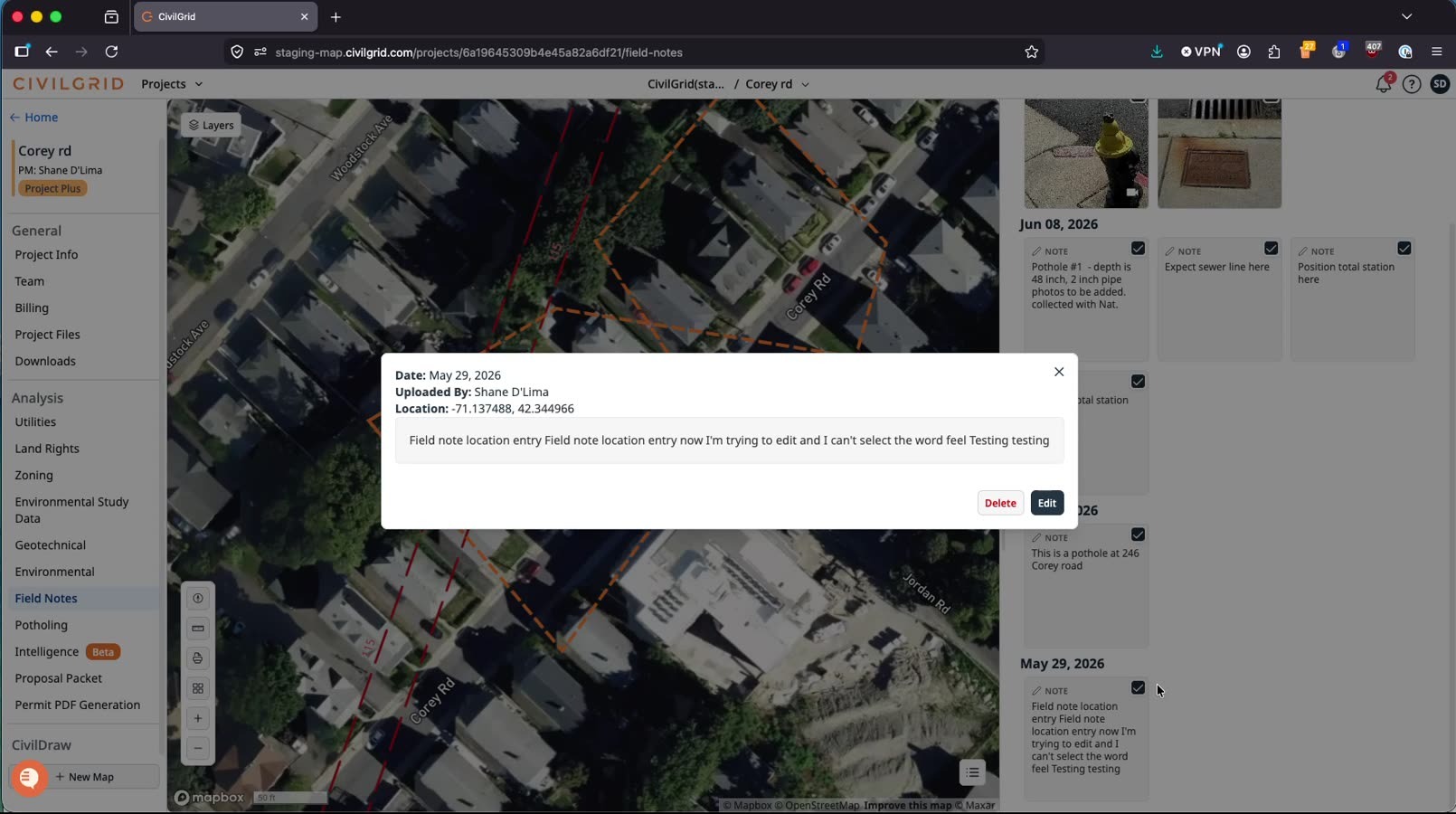
Edit a note’s text or delete test and duplicate notes.
Export the full set as a PDF summary or a ZIP that includes media files.
Before you begin
Platform: map.civilgrid.com in your web browser.
Sign-in: Log in with your CivilGrid account and open the relevant project.
Synced data: Notes added from the mobile app appear once your device has uploaded them. Allow a few minutes after collection for them to show on the web map.
Find your Field Notes
Open the CivilGrid website and locate the left-hand navigation panel.
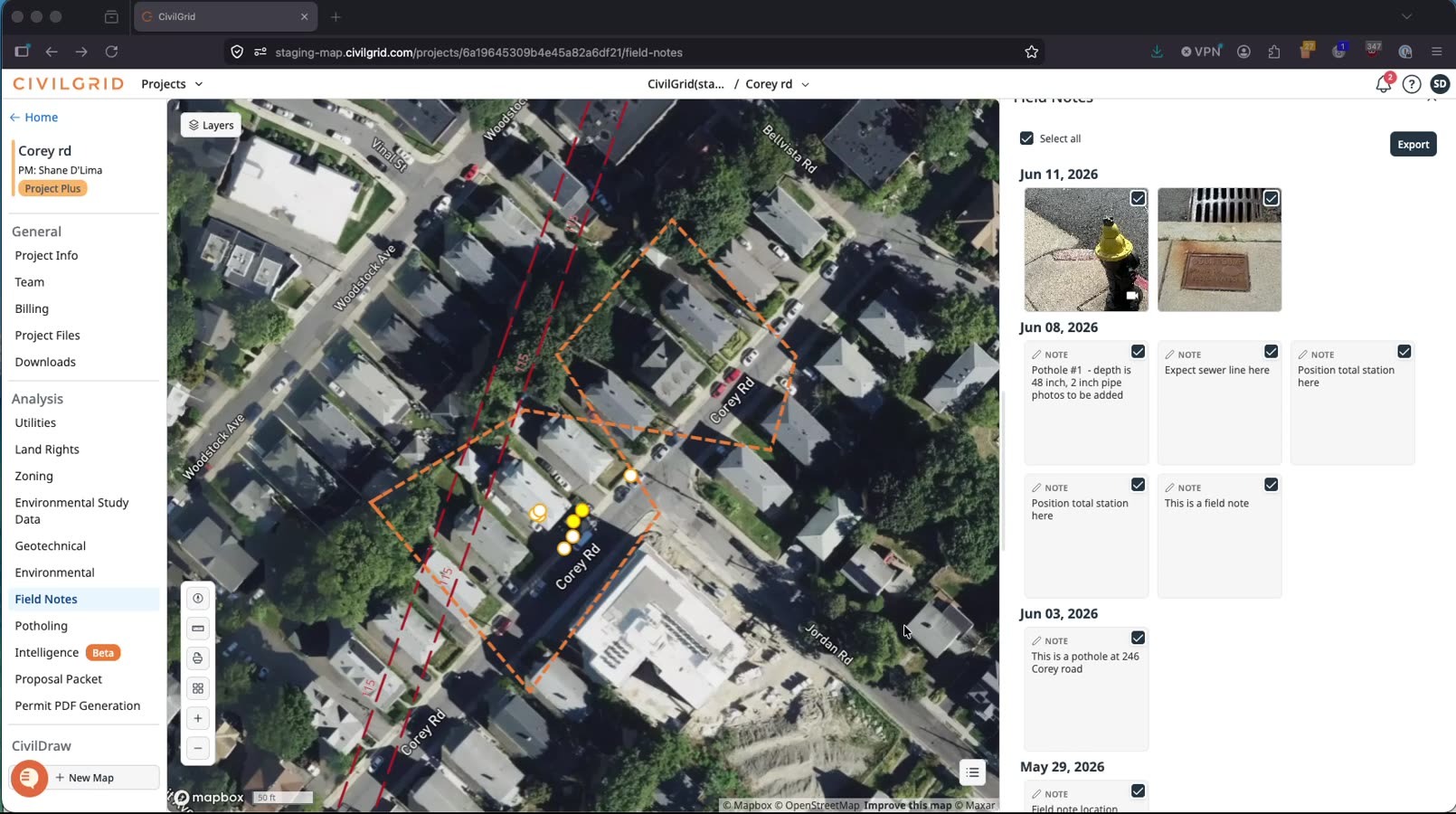
In the left-hand panel, navigate to Field Notes.
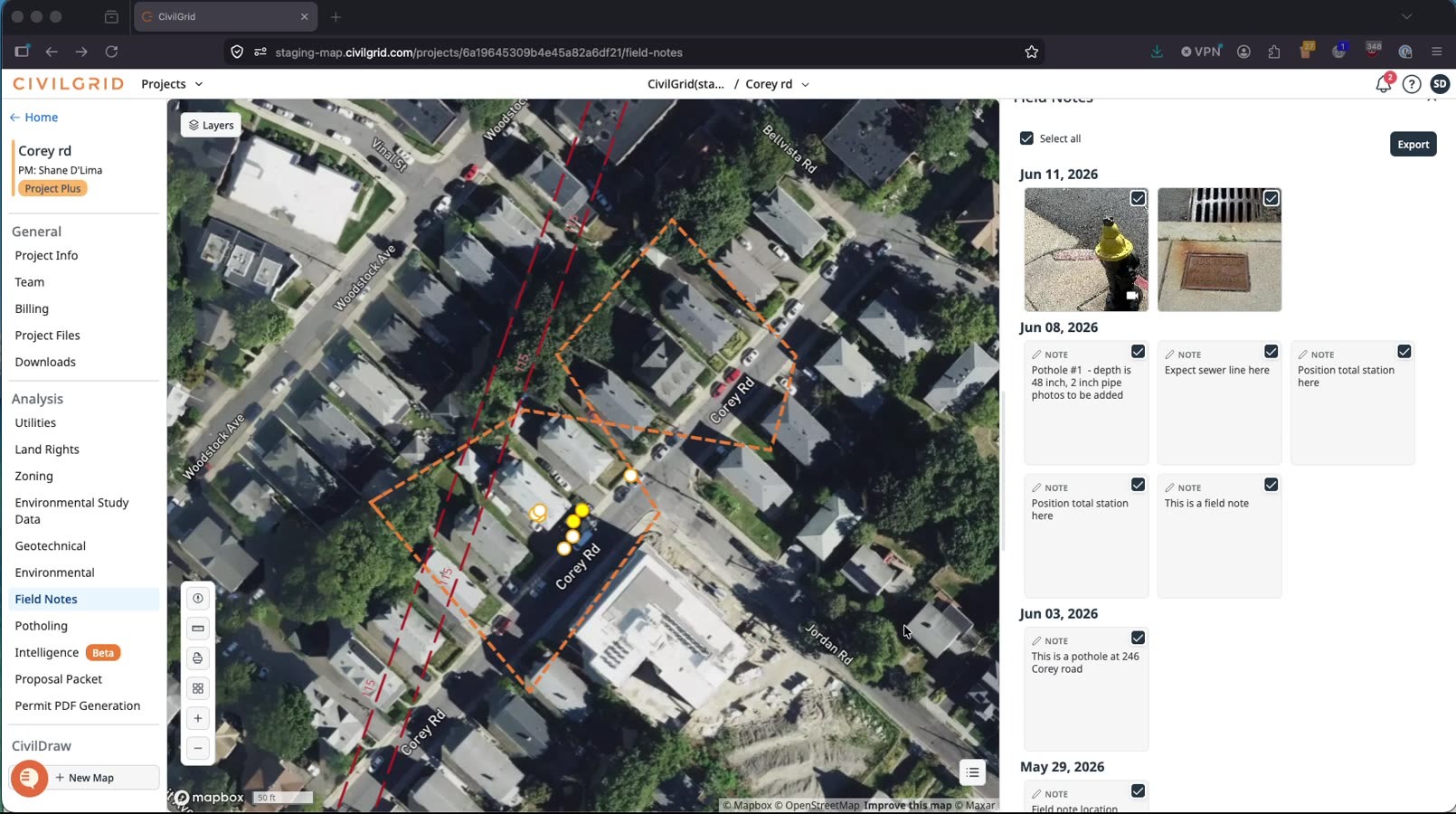
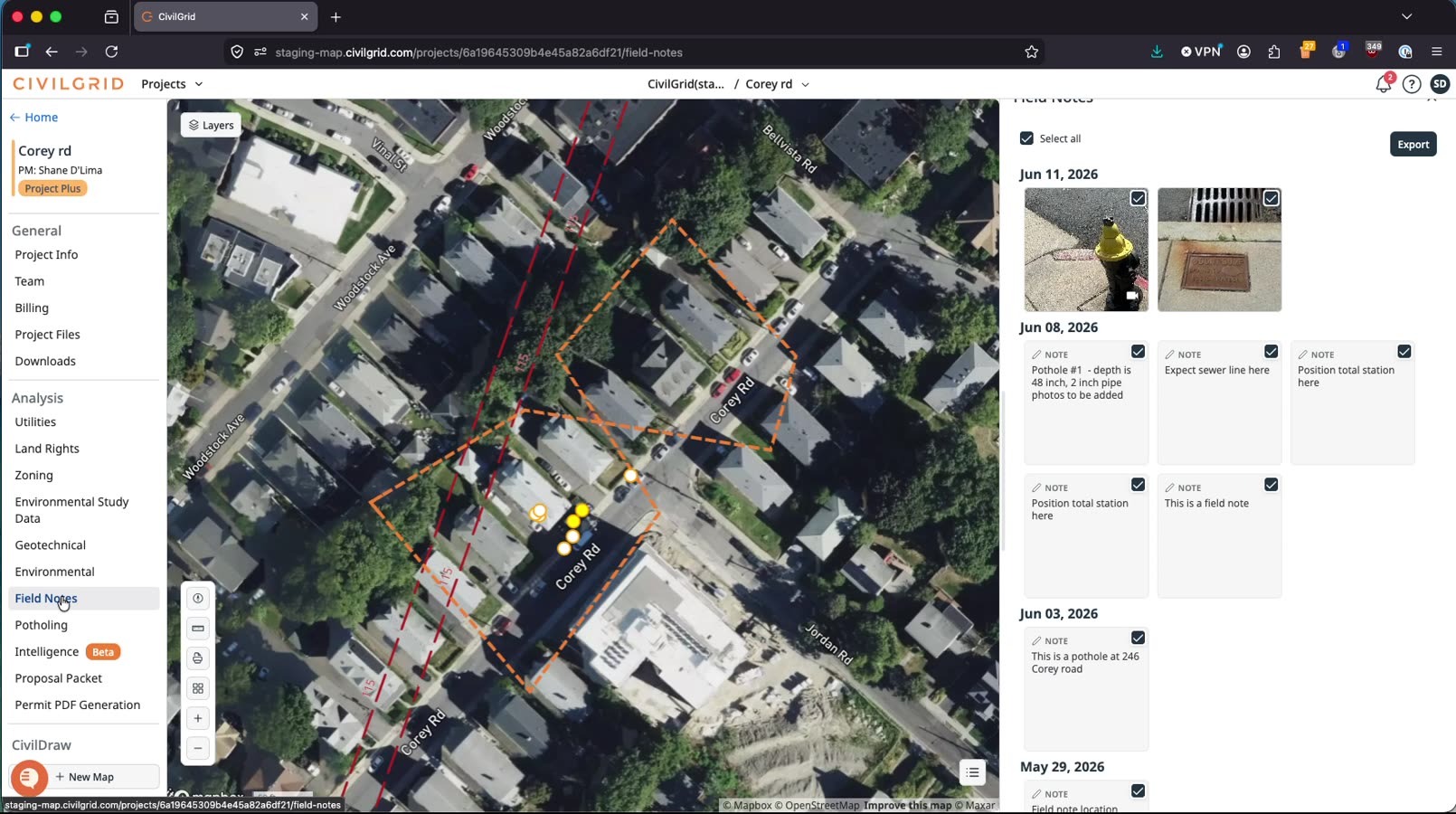
Click Field Notes to view all notes collected from a mobile device or added via Trimble.
Read the map
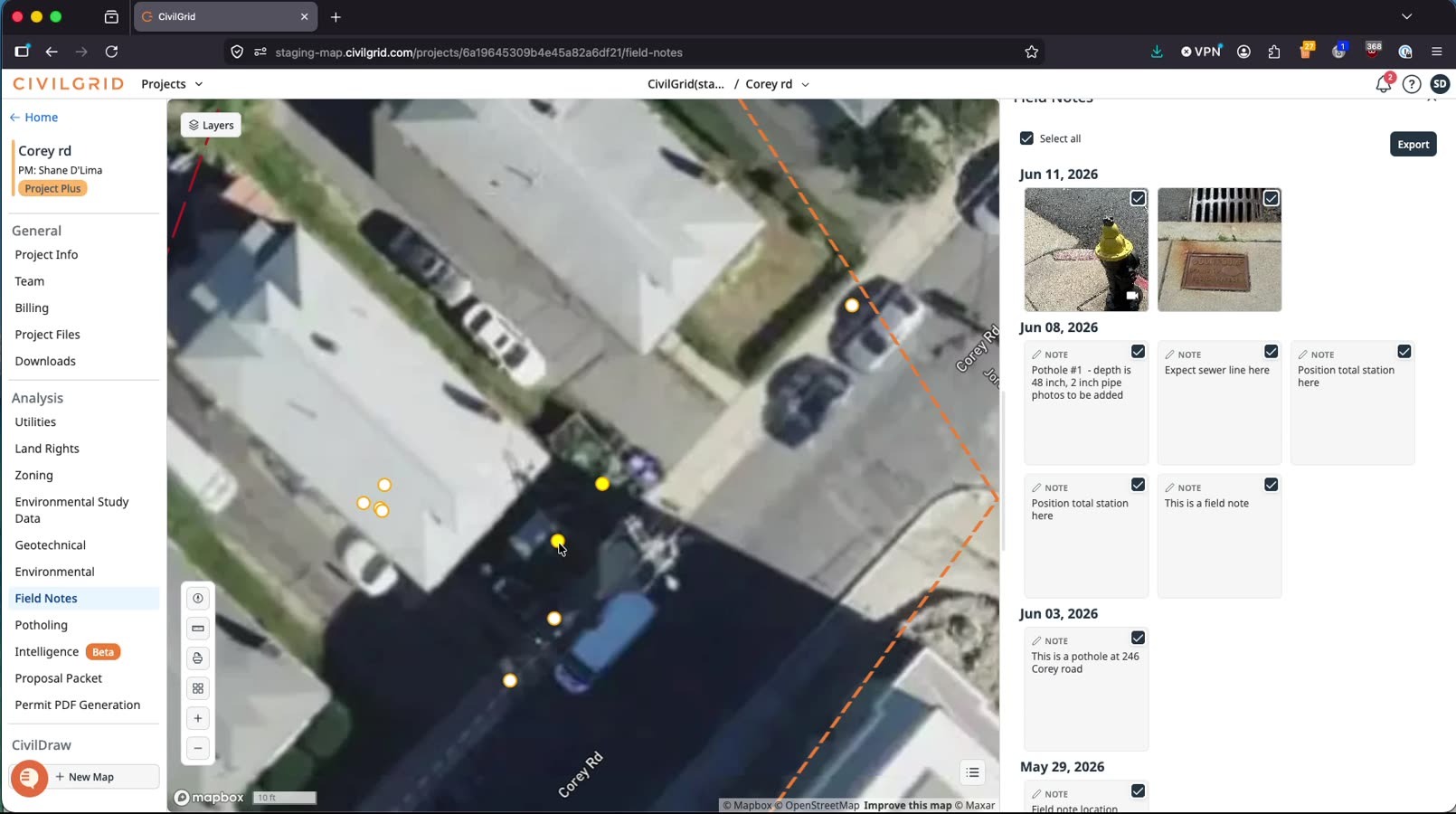
Each dot on the map represents a field note location. Hover over a text field note to see its corresponding point highlighted in green.
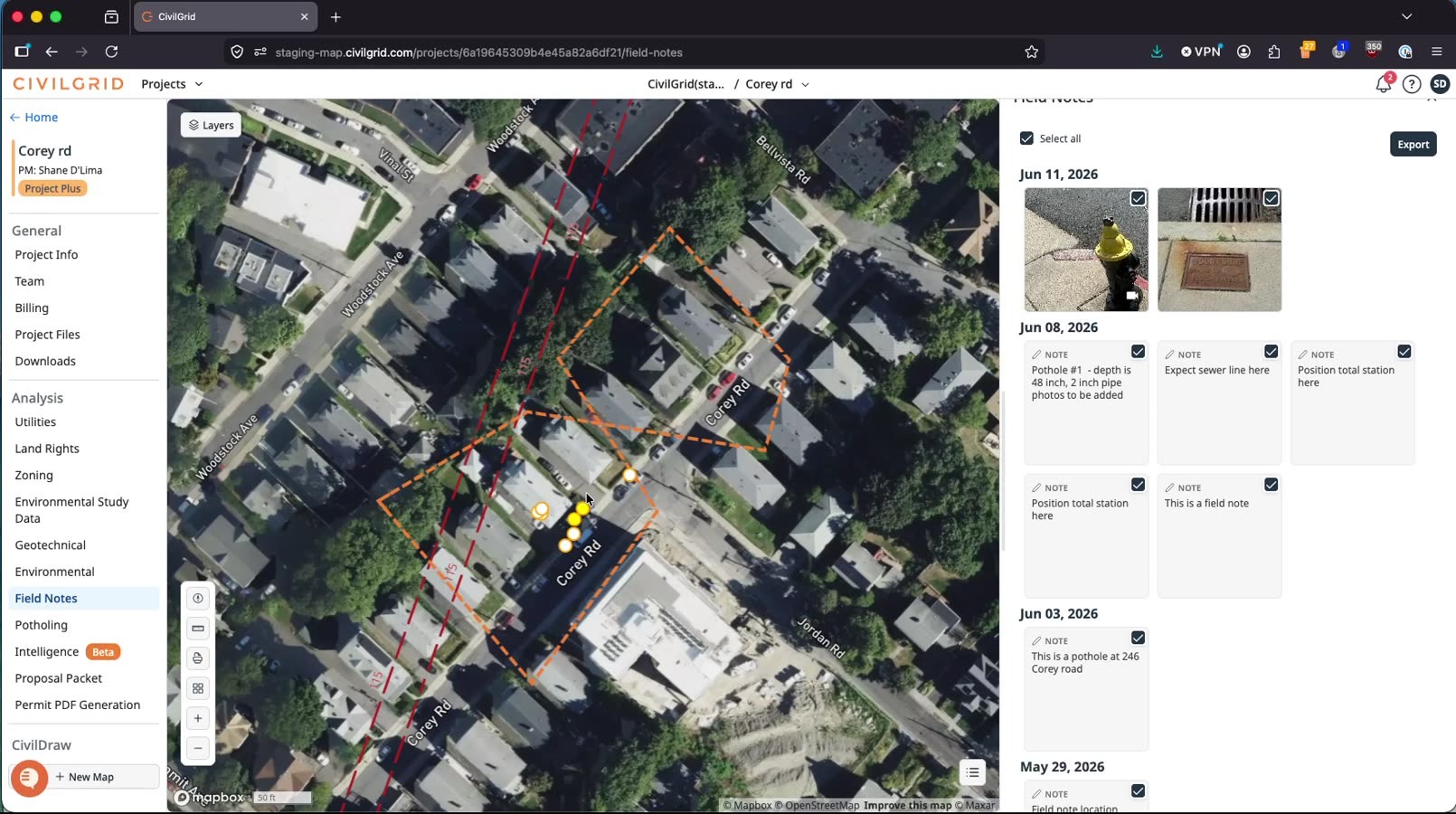
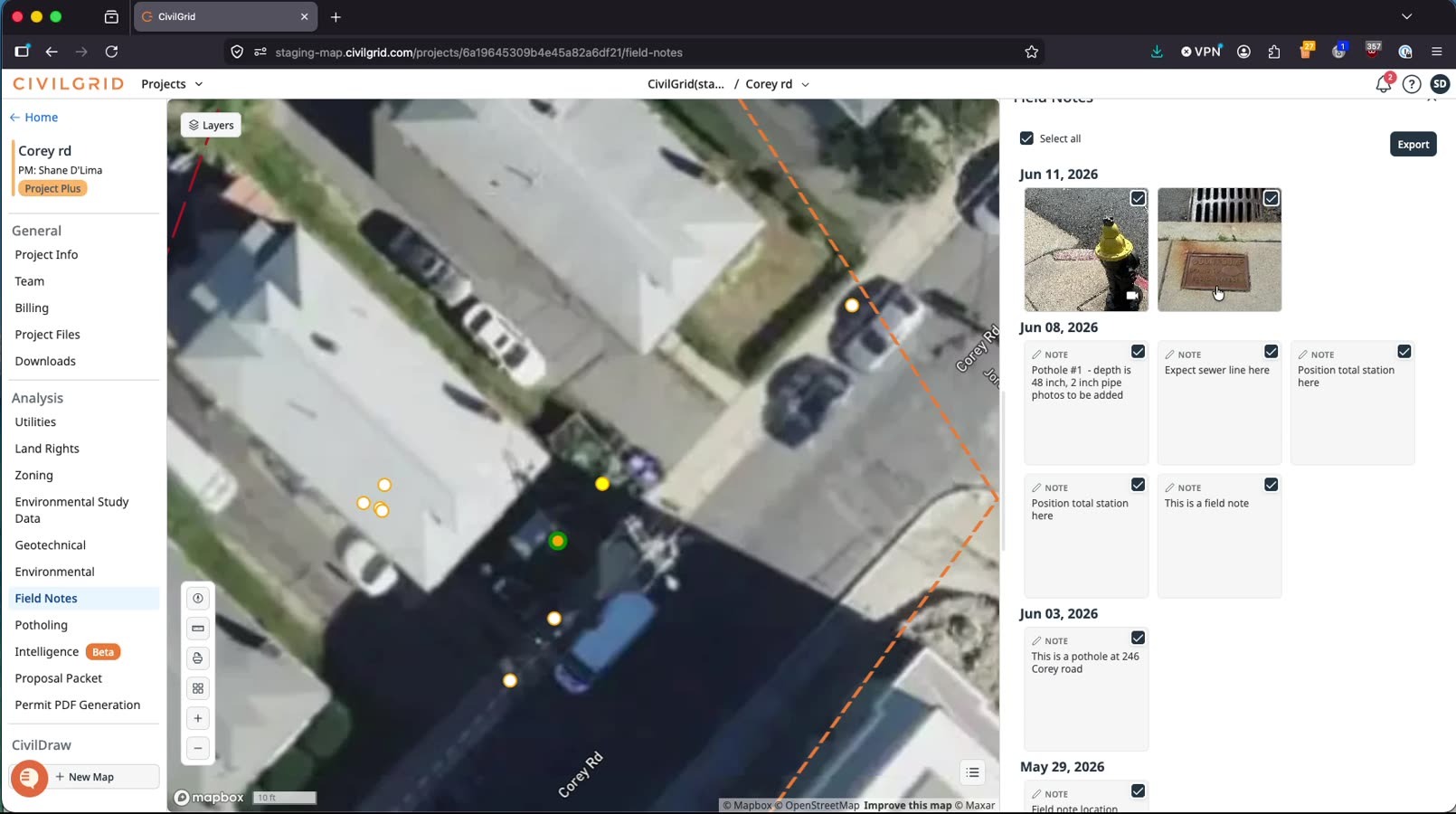
Hover over a photo field note to see its point highlighted in green as well.
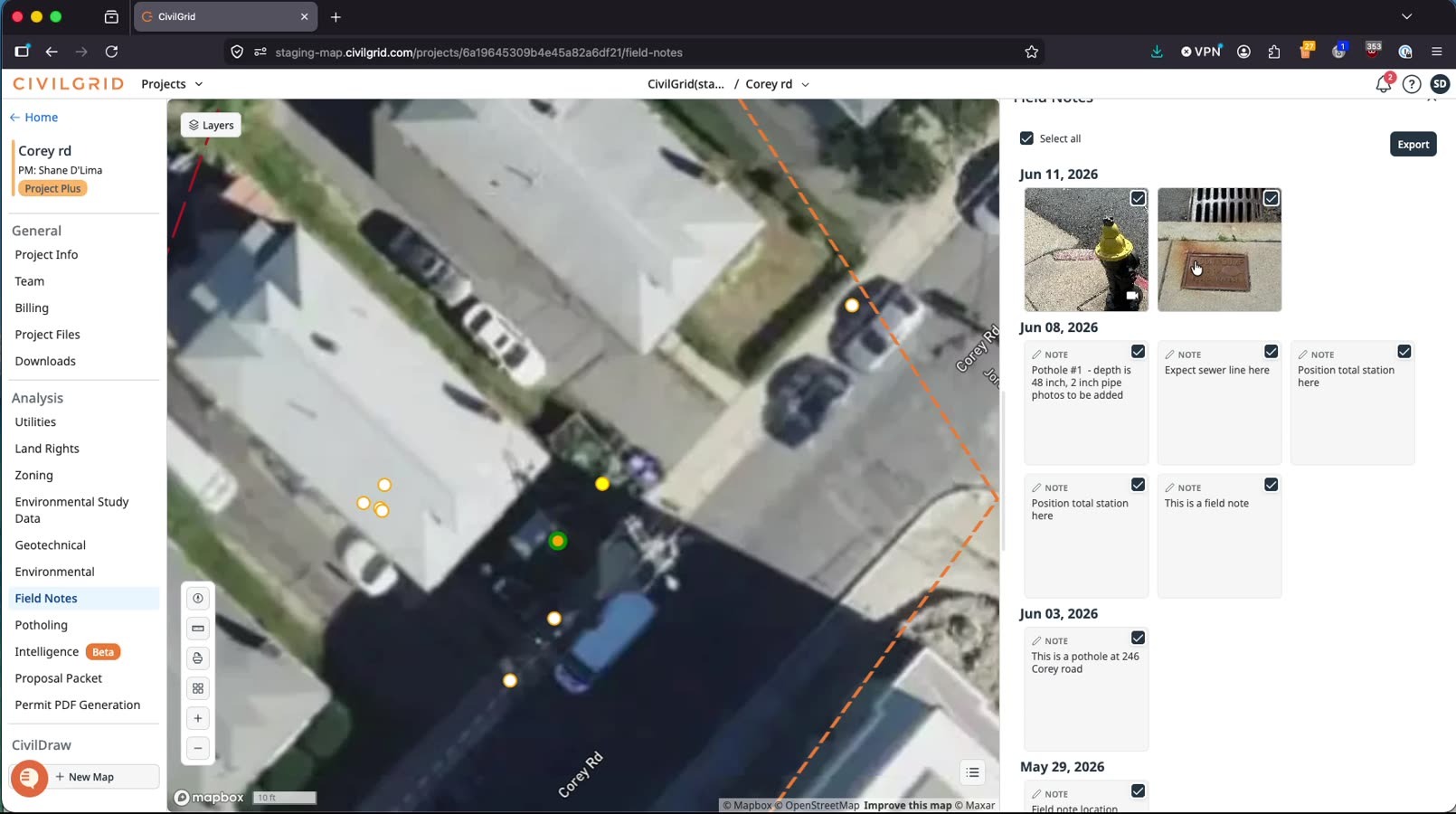
Spot which notes include media by their circle style: media-enabled notes appear with the darker, yellow-orange bounded circles.
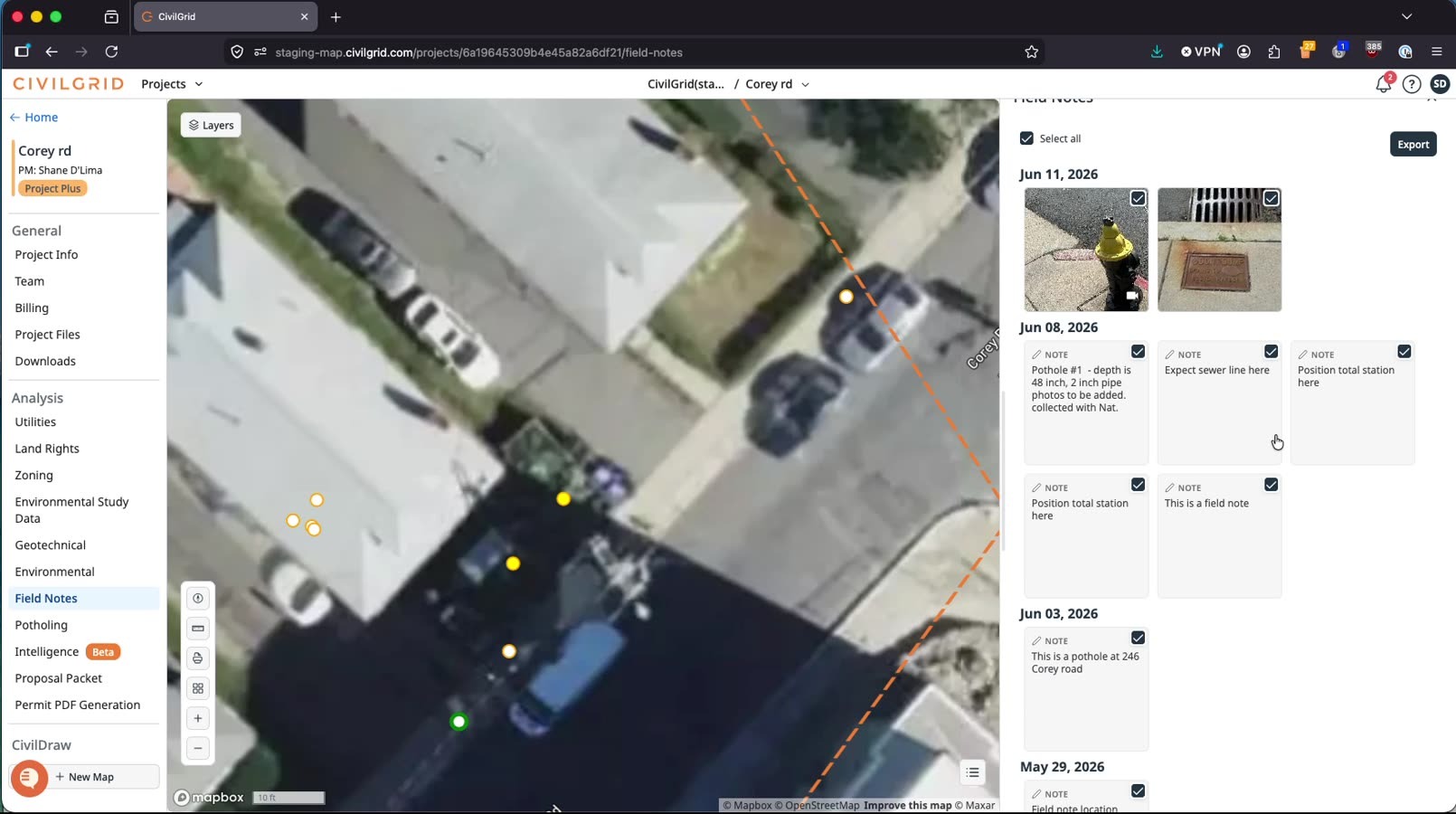
Edit a Field Note
Open a field note, update its text (for example, change the note to read “collected”), then save to update the note.
Delete a Field Note
Delete an unwanted or test field note by clicking Delete on that note.
Confirm the deletion when prompted; the note will disappear.
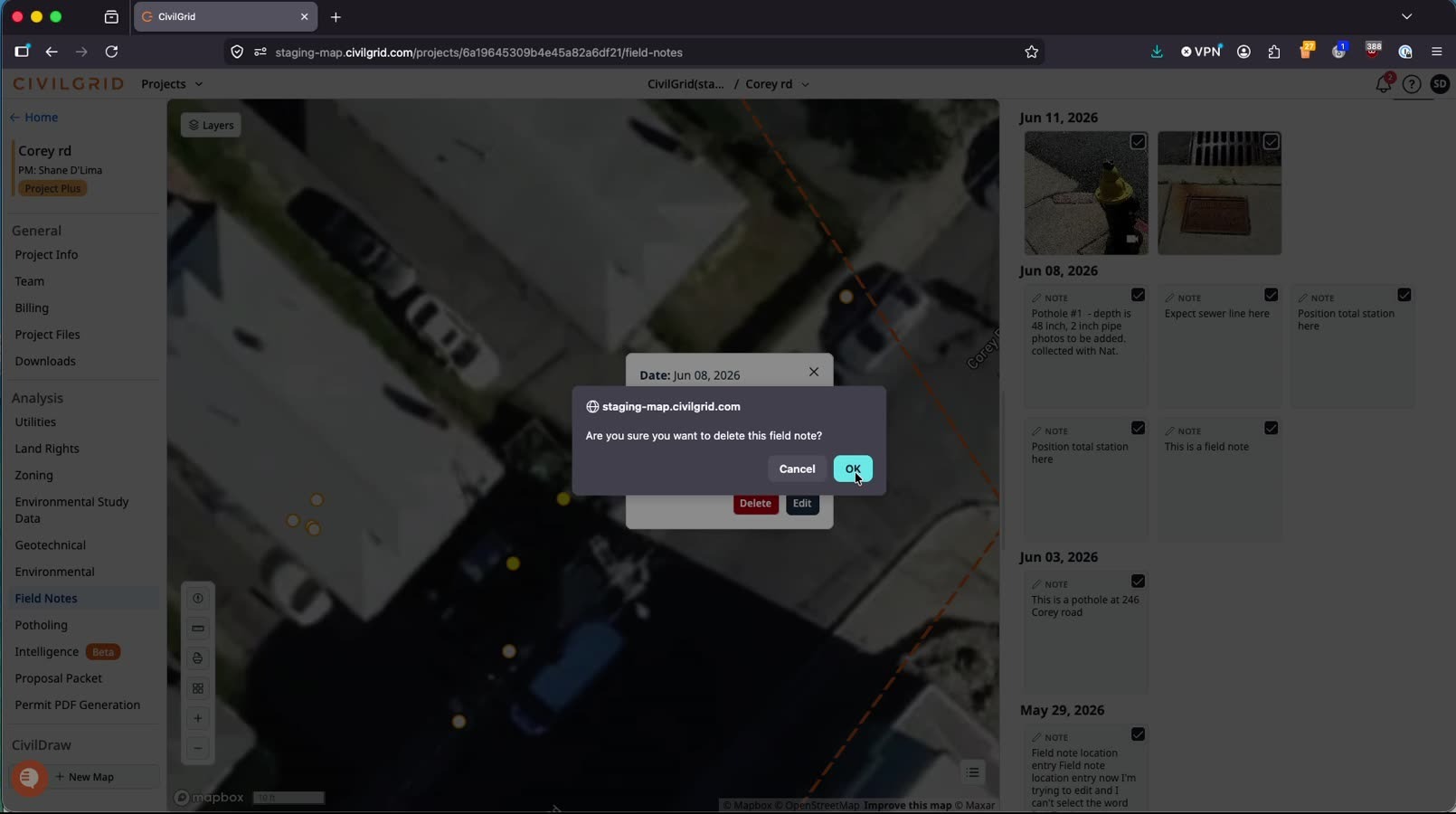
Remember: once a field note is deleted, it is permanently removed.
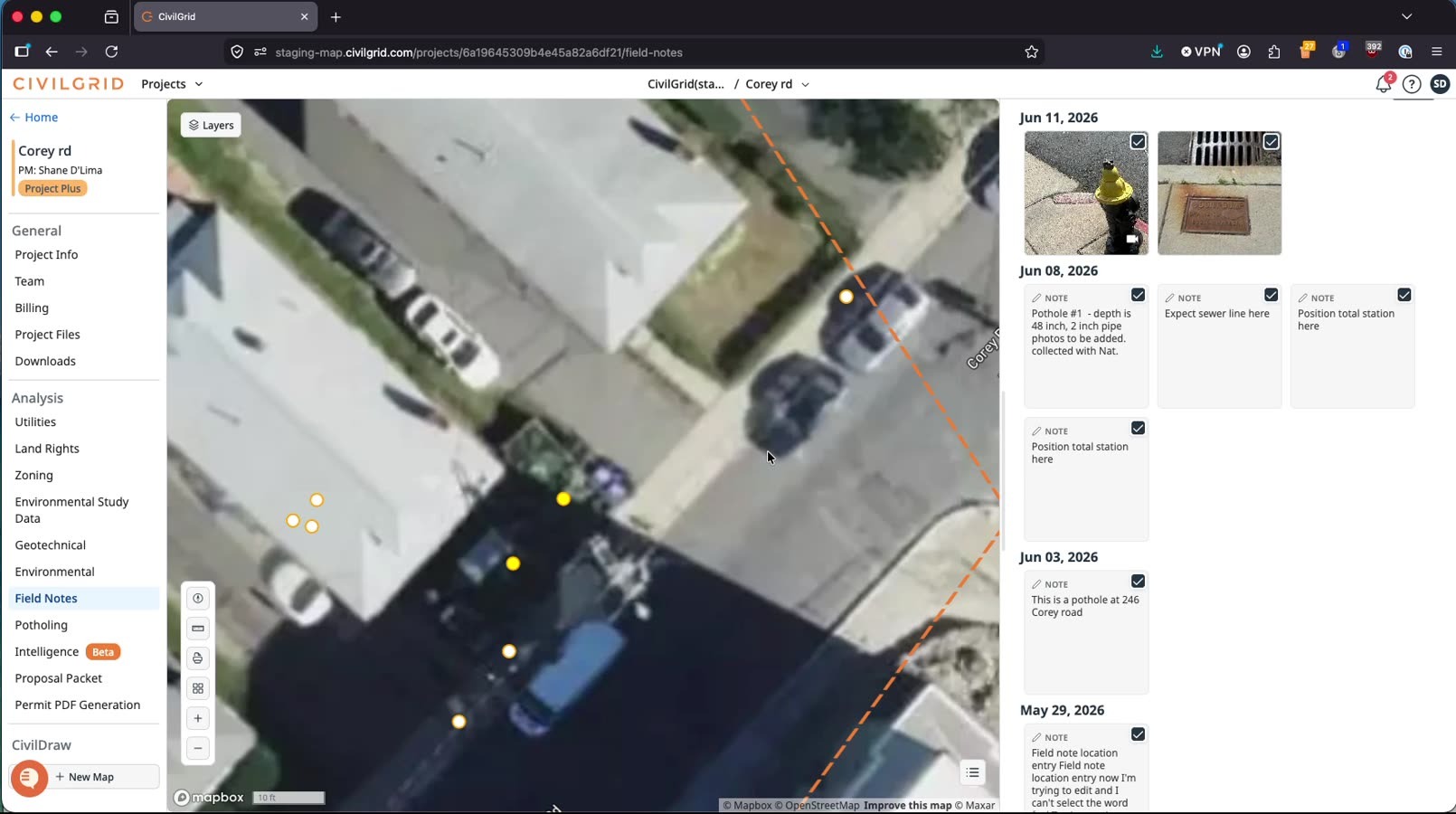
Keep managing notes
Continue managing notes as needed — add new notes from your mobile device and edit any existing notes shown in the list.
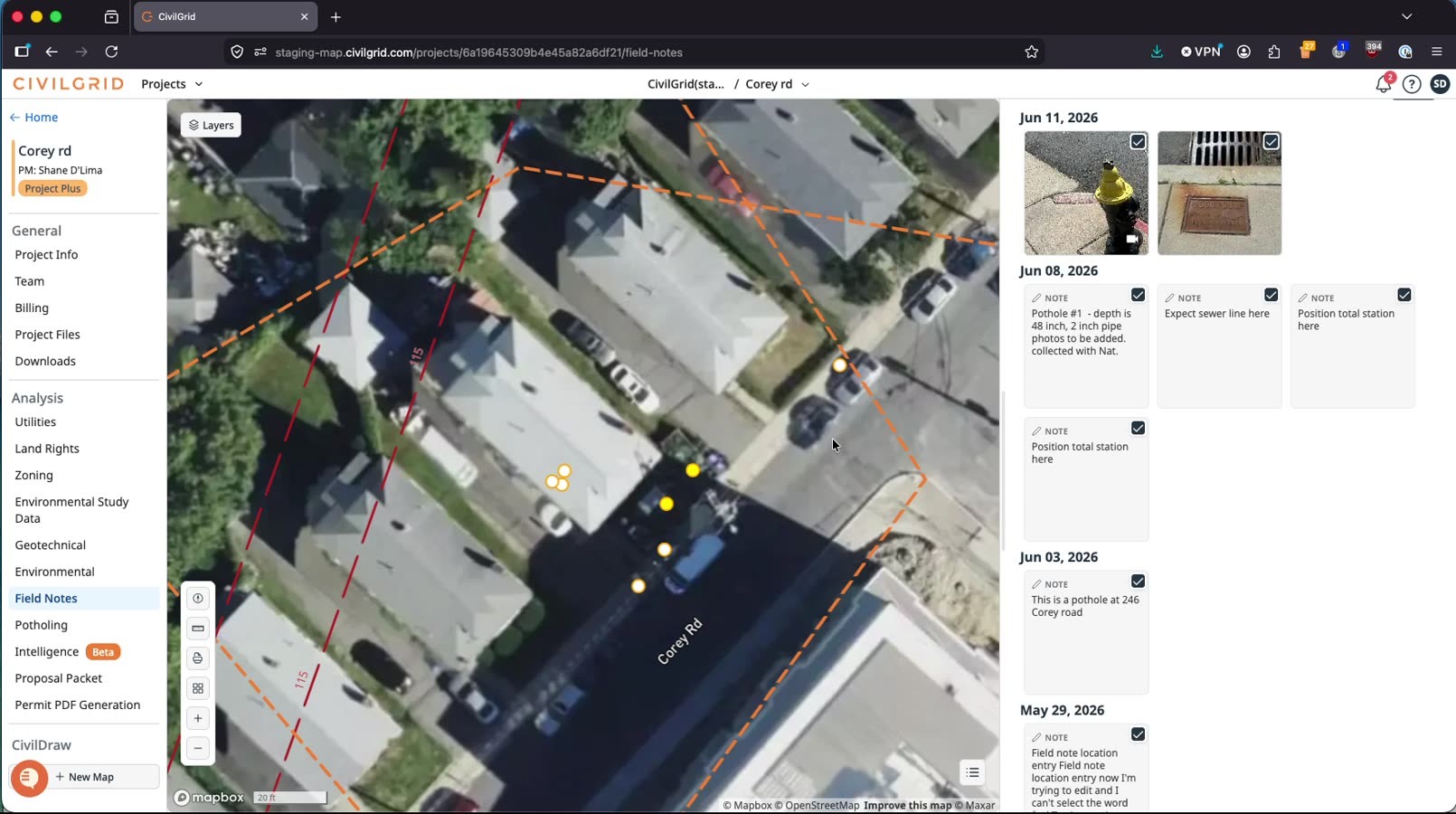
Clear out other non-real or test notes (for example, voice-dictation test notes) the same way.
Export Field Notes
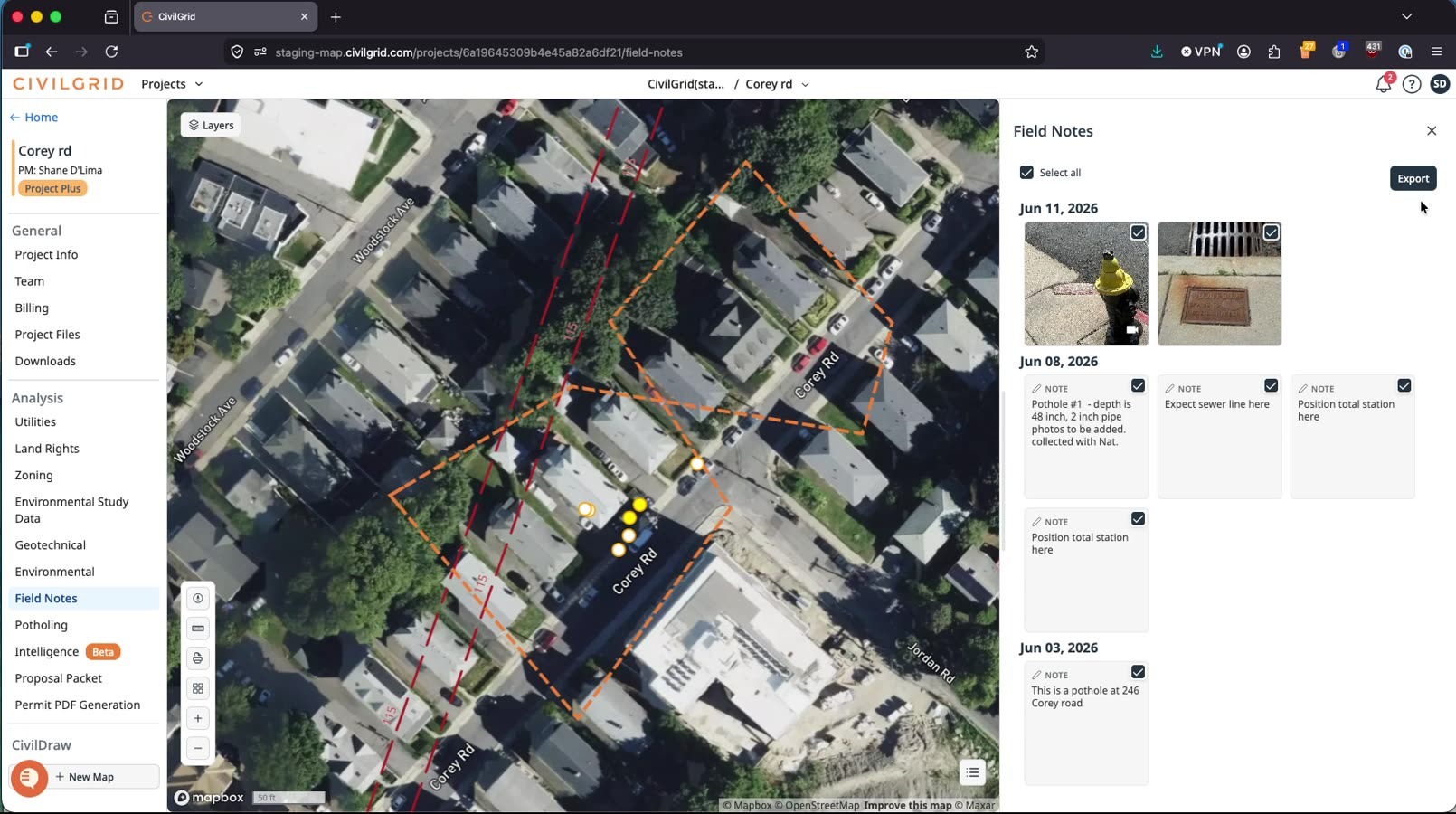
Use Select All to choose all field notes, then start an export.
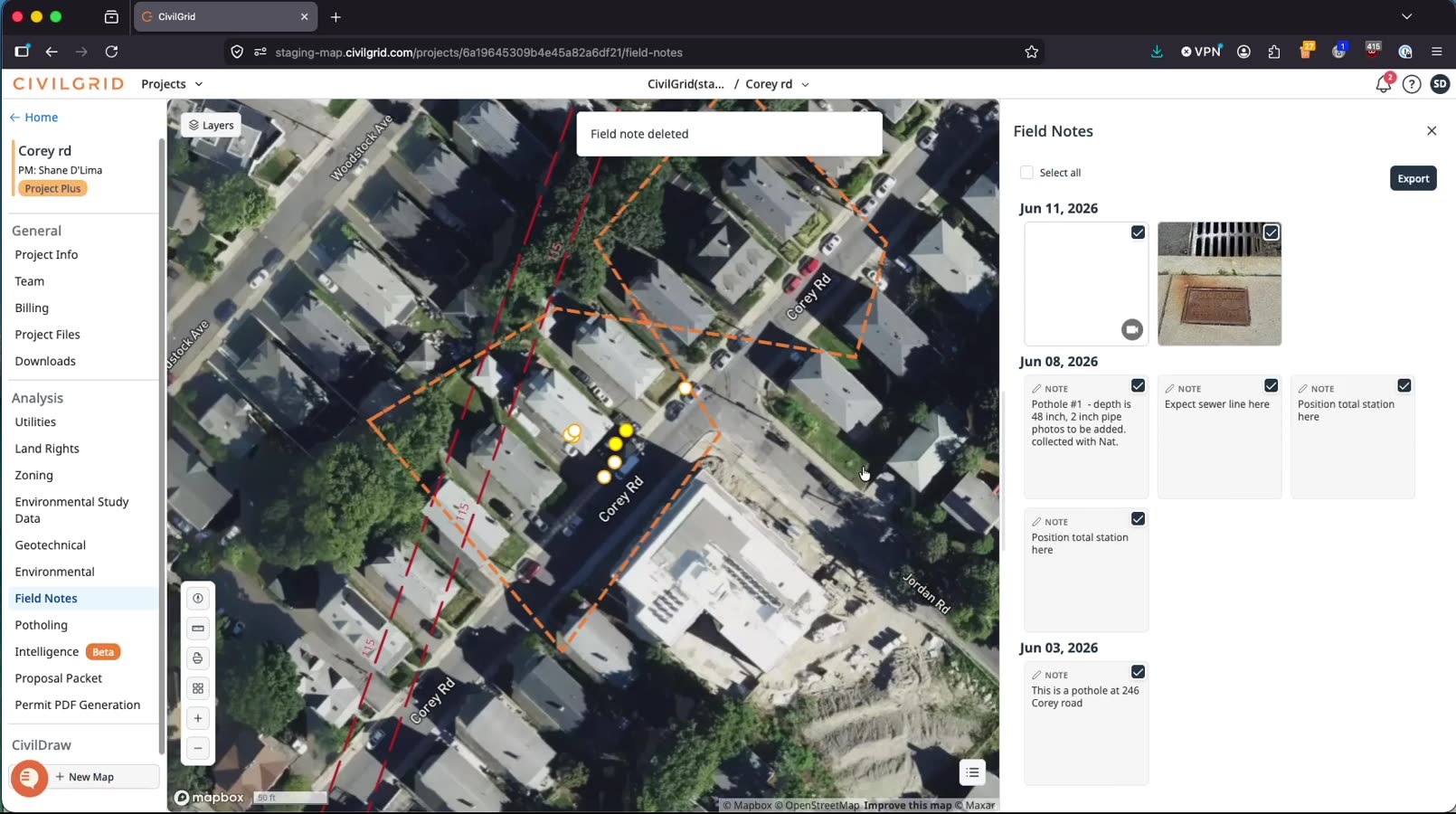
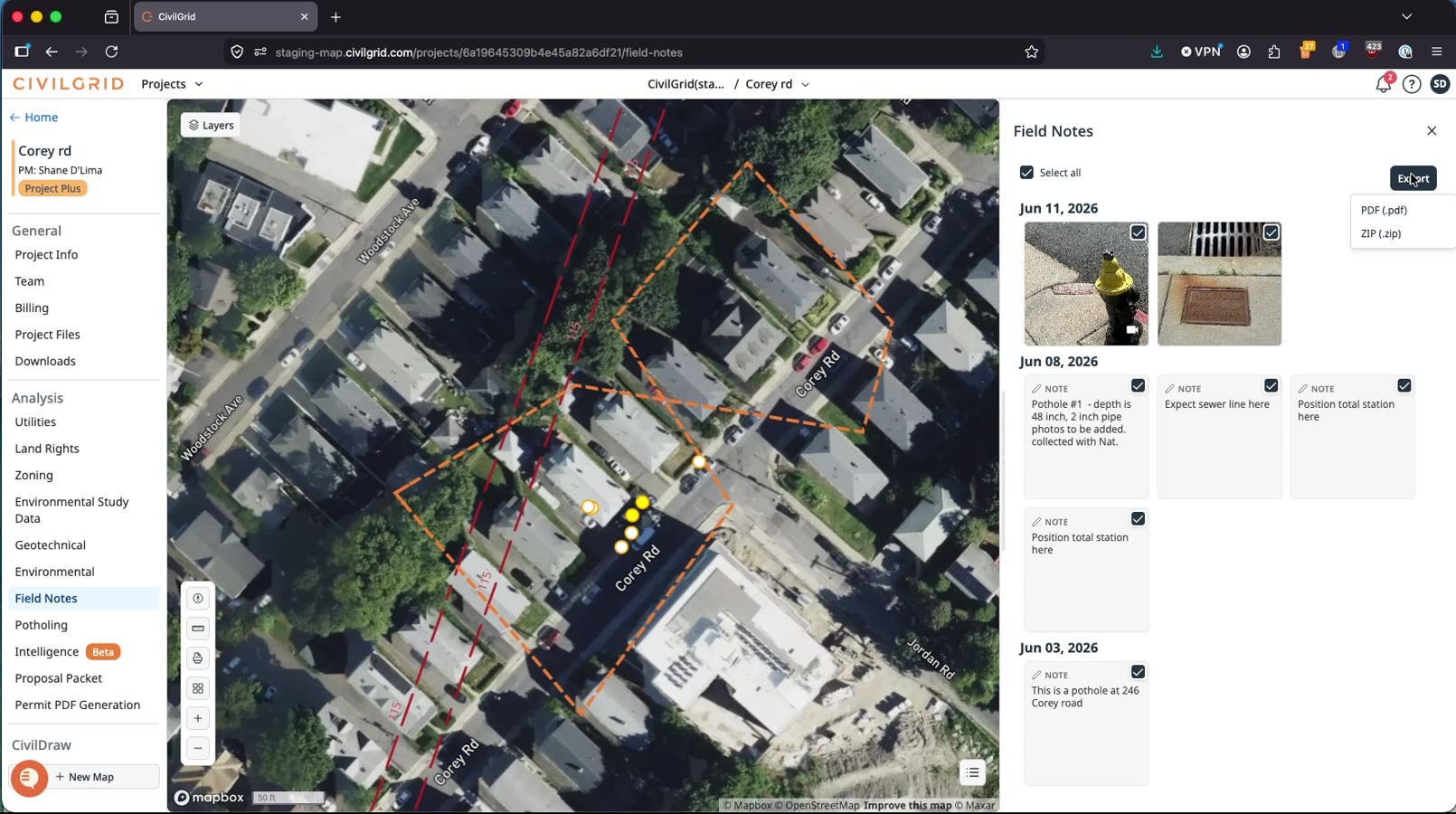
Choose an export format:
Export as PDF — a text and summary report.
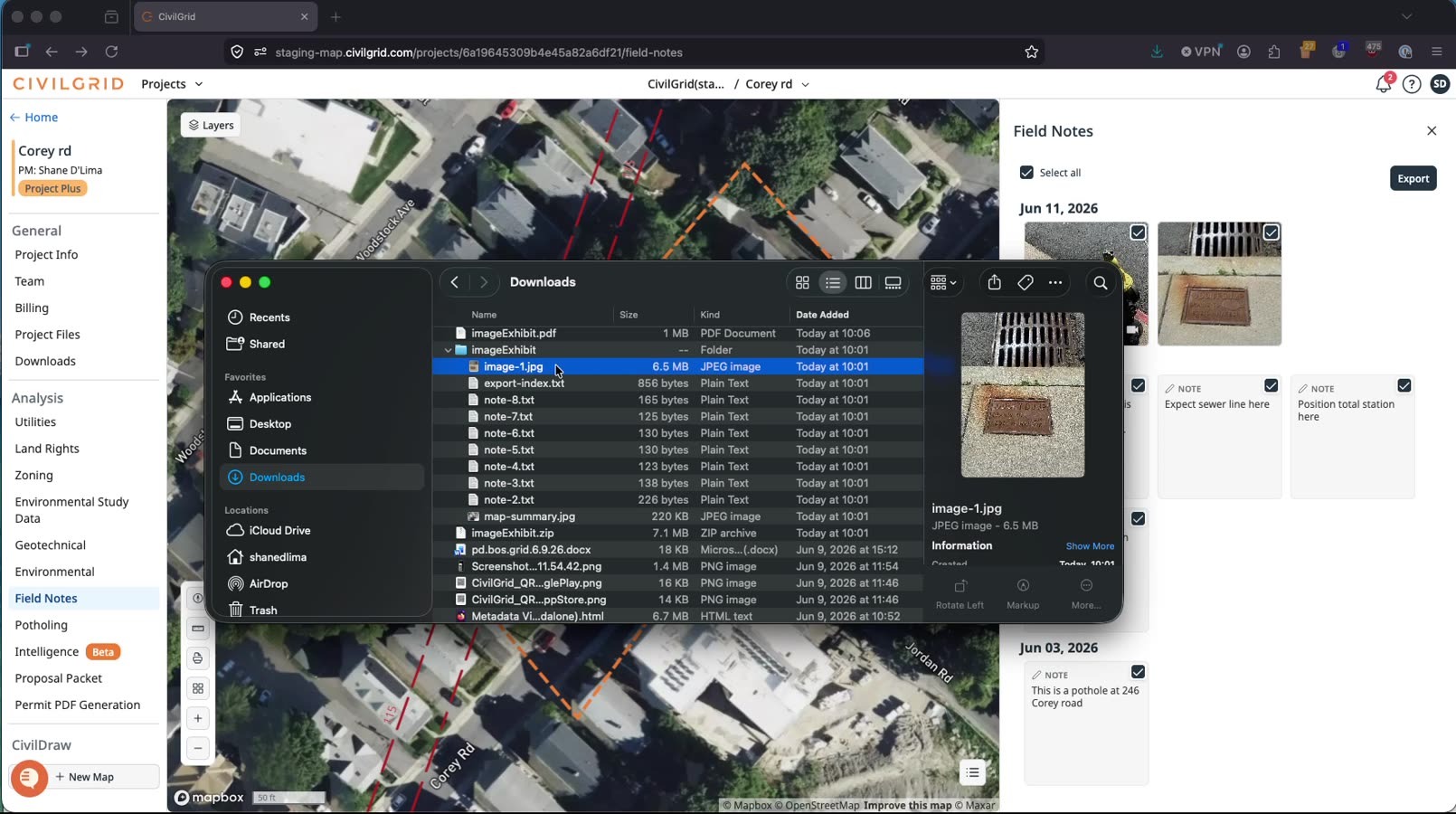
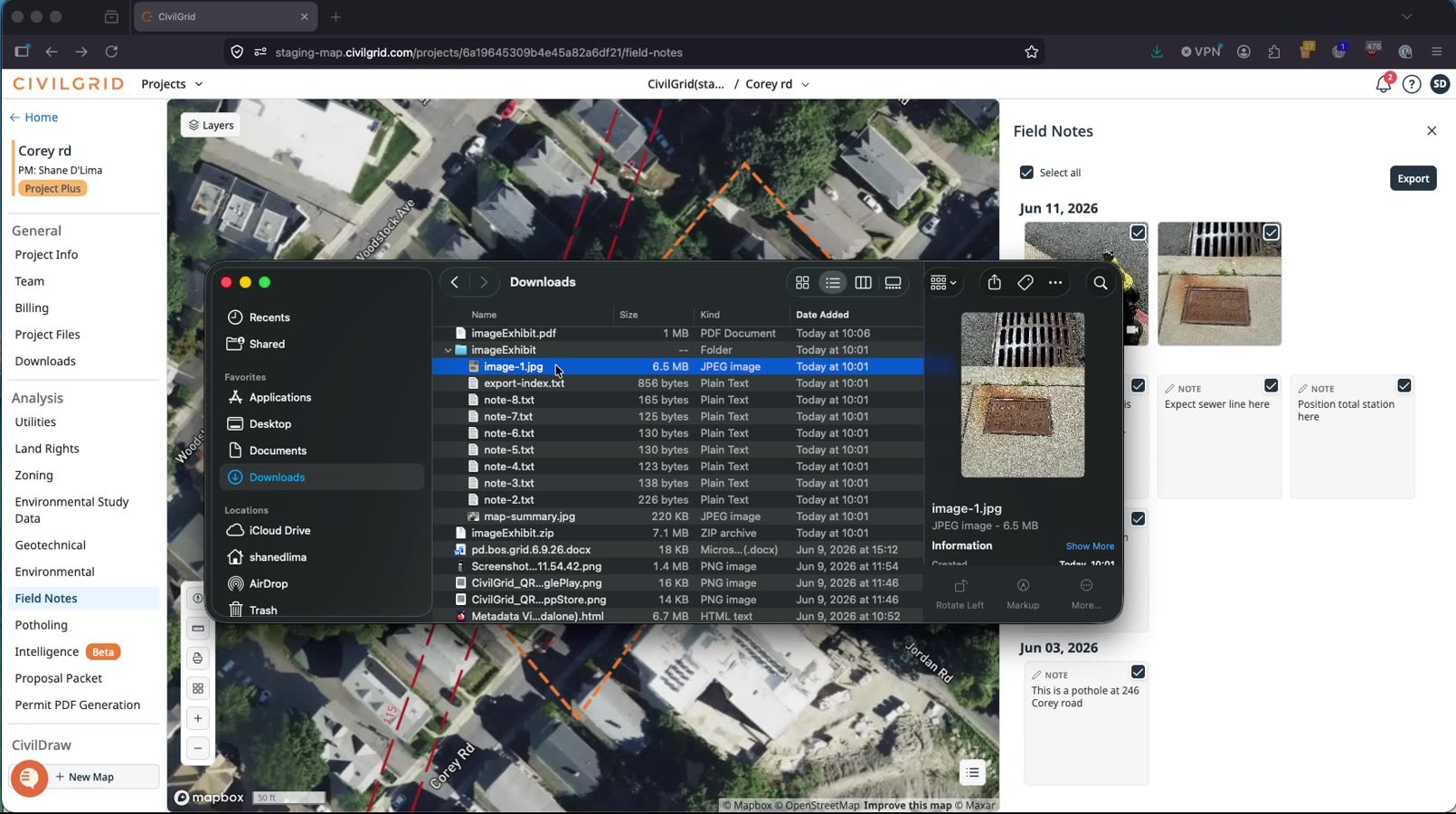
Export as ZIP — includes media files.
Run the export. You’ll receive an email with download links for the PDF and/or ZIP once it’s ready.
Coming later this year: Field Notes will also be exportable in CAD and GIS formats.
Review your exported notes
Text-based notes include the note text plus metadata such as location coordinates.
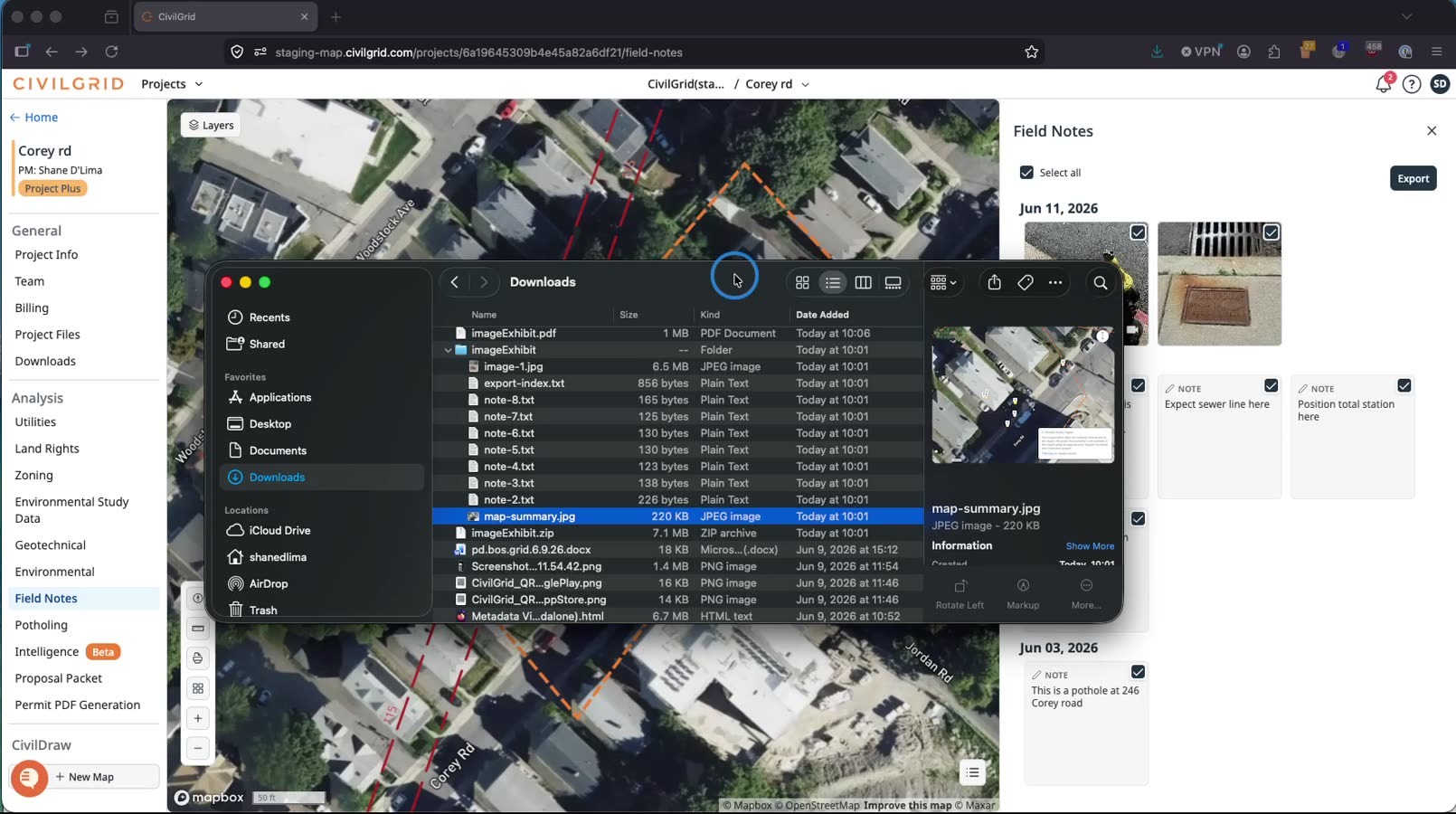
Media notes (like photos) appear with their associated image previews.
That’s it — you’ve reviewed, edited, deleted, and exported field notes from the CivilGrid web platform.
Troubleshooting & FAQ
My note isn’t on the web map yet. Allow a few minutes for mobile-collected data to appear on map.civilgrid.com, and double-check that the device had internet access to upload.
How do I tell media notes apart from text notes? Media-enabled notes show as the darker, yellow-orange bounded circles; hovering any note highlights its point in green.
Can I recover a note I deleted? No — deleting a field note removes it permanently. If you’re in the field you can add it again, or recreate it later by panning to the location on the map.
Where does my export go? Exports are emailed to you with download links once ready. Choose PDF for a text summary or ZIP when you need the media files included.