Enabling app permissions for the CivilGrid Mobile App
Last updated: July 2, 2026
The CivilGrid Mobile App asks for a few device permissions so Field Notes work the way they should — placing you on the map, capturing photos and video, and letting you dictate notes hands-free. This article explains each permission, why CivilGrid uses it, and how to turn one back on if you tapped Don't Allow.
Good to know: CivilGrid only uses these permissions to power features you choose to use in the field. You can grant a permission when first prompted, or enable it later in your device settings.
Permissions at a glance
Granting permissions when prompted
The first time you use a feature that needs one of these permissions, iOS shows a prompt. Tap the recommended option below to keep working without interruption.
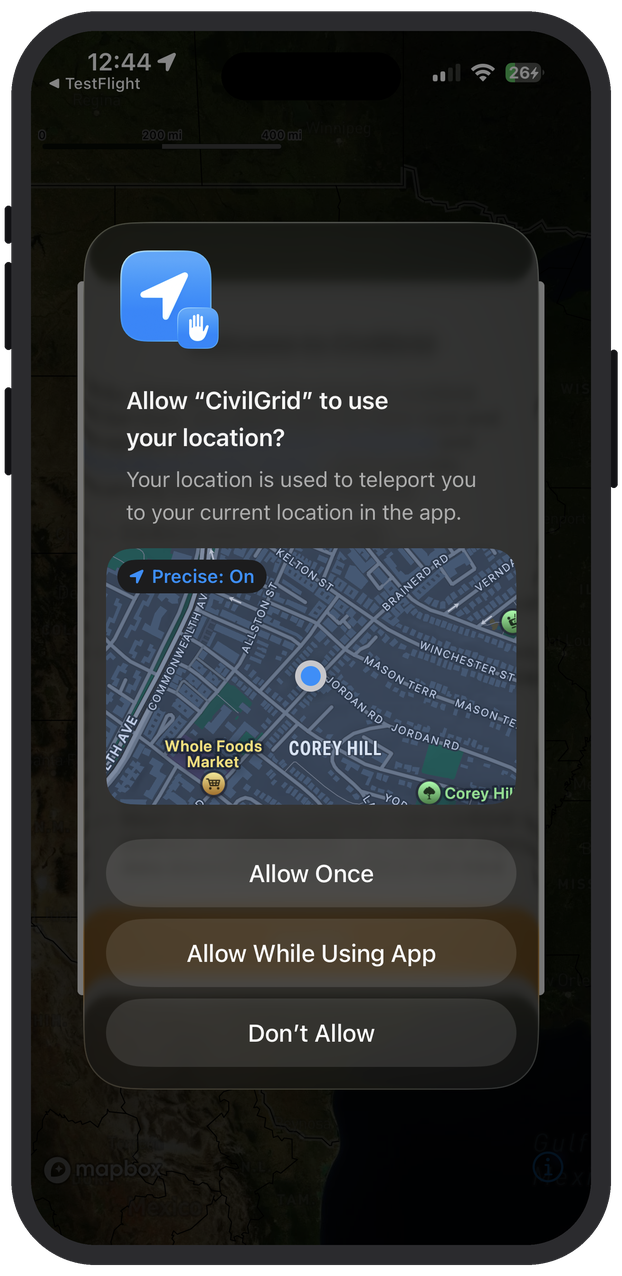
Location
Prompt: Allow “CivilGrid” to use your location? Your location centers the map on where you're standing so Field Notes land in the right place.
Tap Allow While Using App.
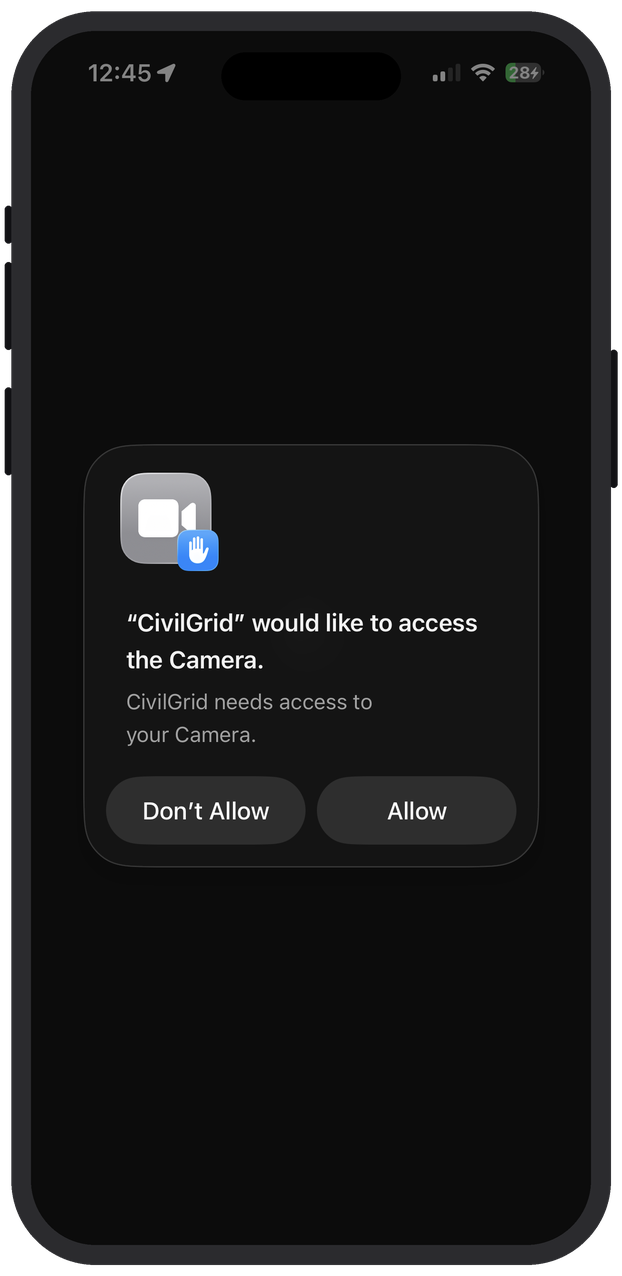
Camera
Prompt: “CivilGrid” would like to access the Camera. The camera lets you attach photos and record video of field conditions to a Field Note.
Tap Allow.
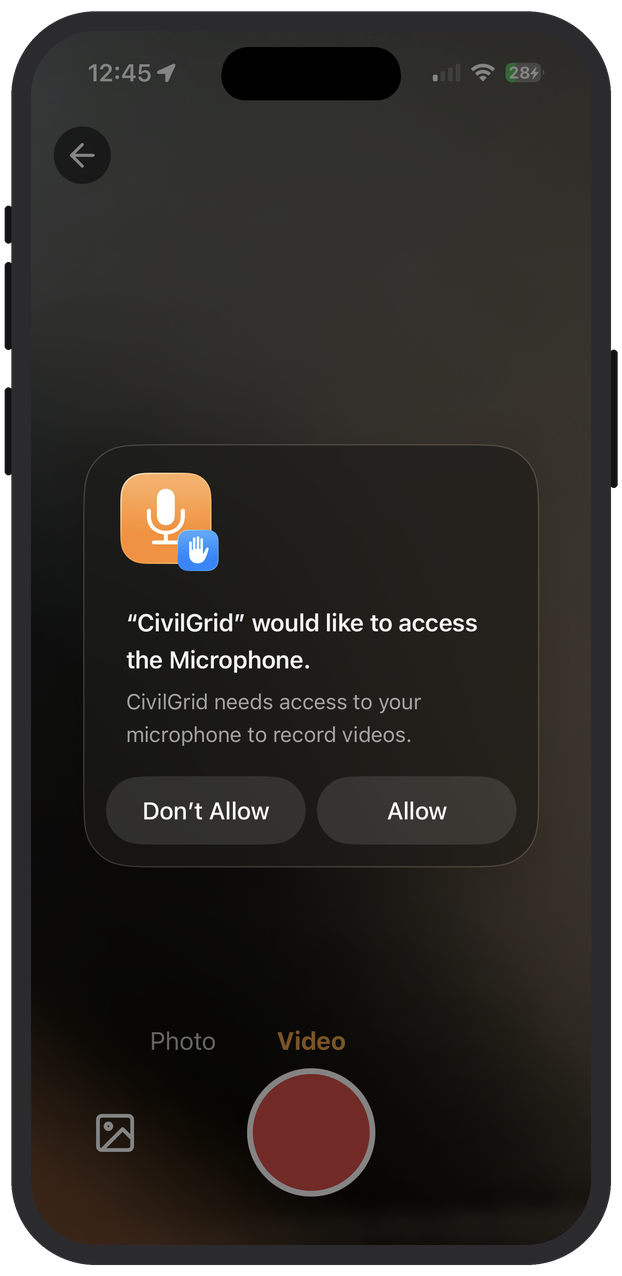
Microphone
Prompt: “CivilGrid” would like to access the Microphone. The microphone records audio for videos and powers voice dictation of Field Notes.
Tap Allow.
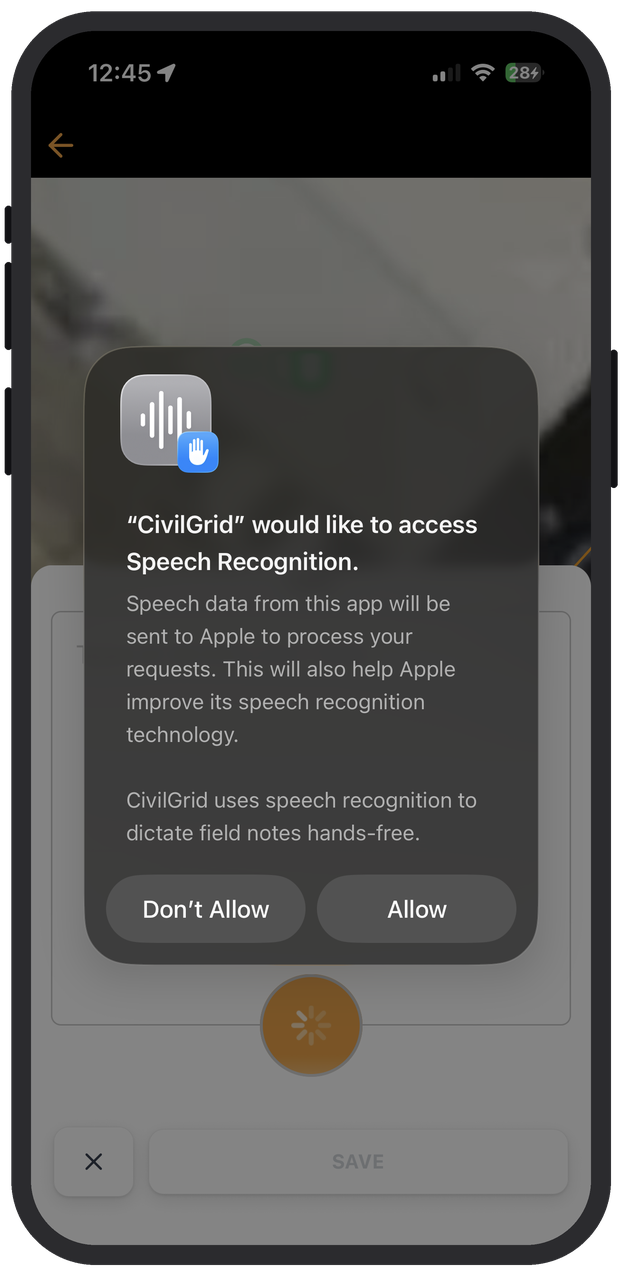
Speech Recognition
Prompt: “CivilGrid” would like to access Speech Recognition. Speech recognition turns your dictation into text so you can write Field Notes hands-free.
Tap Allow.
If you tapped “Don't Allow”
No problem — nothing breaks. When you next use a feature that needs a permission you declined, the app tells you what it needs and points you to Settings. For example, dictation shows this alert:
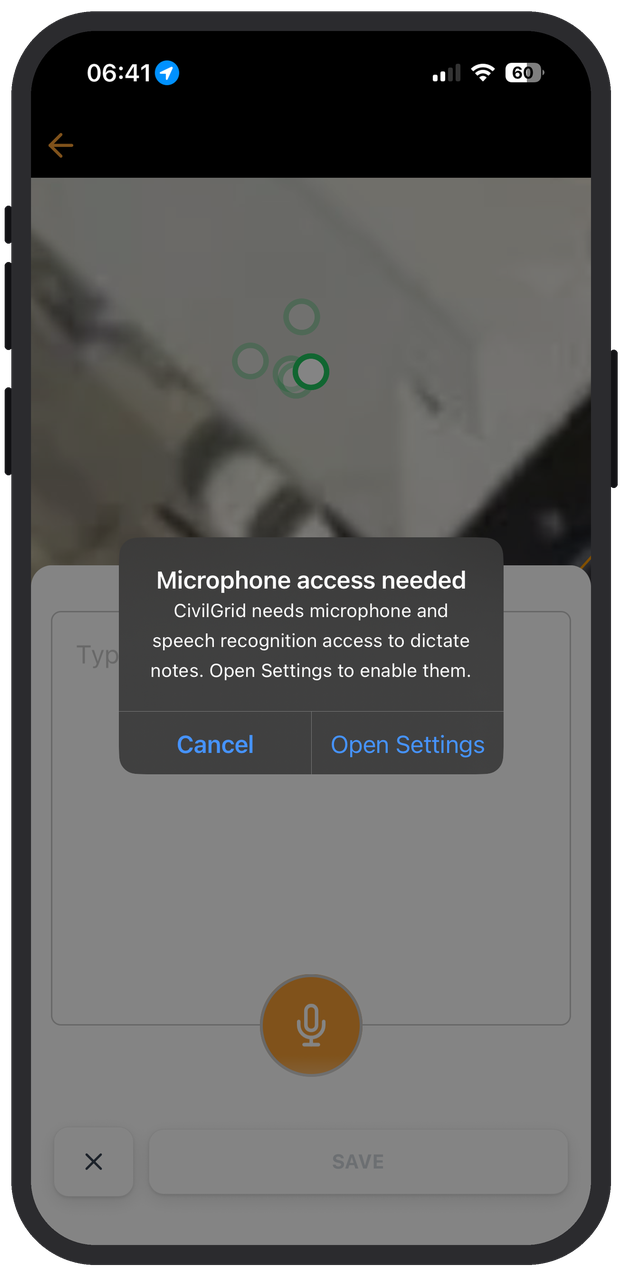
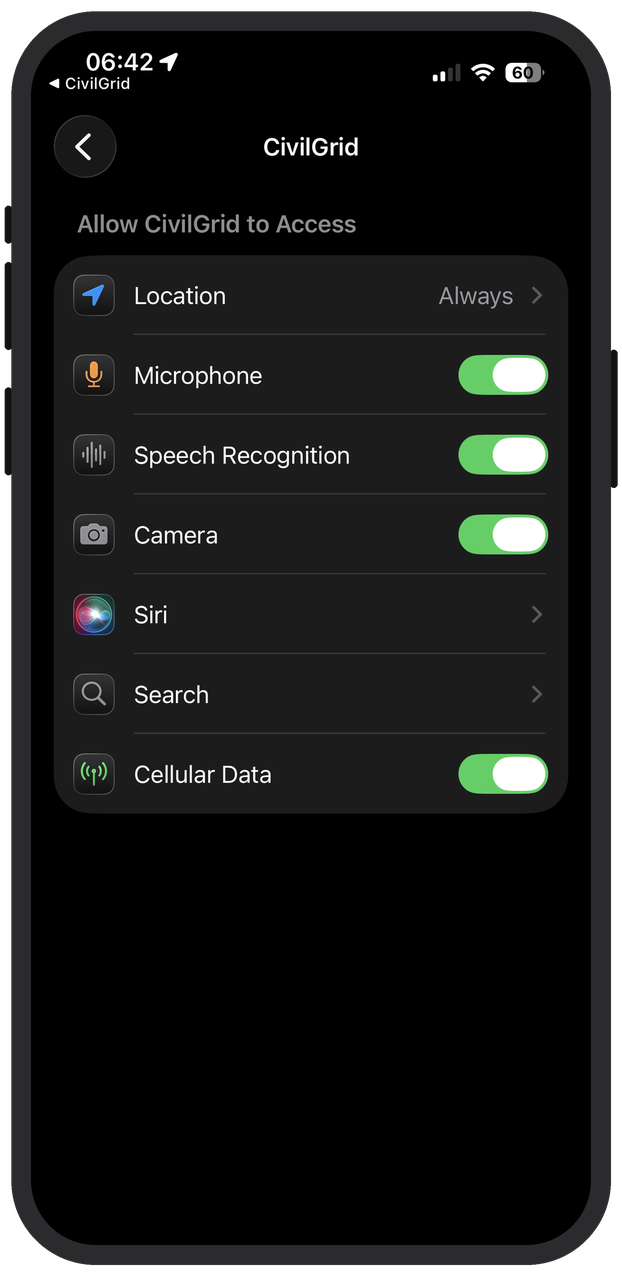
To re-enable a permission on iOS:
Tap Open Settings on the alert. (Or open the iOS Settings app and scroll down to CivilGrid.)
On the CivilGrid screen, turn on the toggle for the access you want — Location, Microphone, Speech Recognition, or Camera.
Return to the CivilGrid Mobile App. The feature will now work as expected.
On Android
Android manages the same permissions under Settings › Apps › CivilGrid › Permissions. Toggle on Location, Camera, and Microphone to enable photos, video, and dictation.